How to trade a signal
Every BlastSignals signal gives you three prices: where to get in, where to take profit and where to get out if it goes wrong. This guide shows what they mean and how to place a BUY and a SELL signal on Binance, step by step.
1. Read a signal
Open any signal and look at the Signal Details card. This is what each line means:
- BUY / SELL
- The direction. BUY expects the price to go up, SELL expects it to go down.
- Entry Price
- The price where you open the trade.
- Target Price
- Where you close with a profit (take profit).
- Stop Loss
- Where you close with a small, planned loss if the market goes the other way.
- Strength
- ★ Weak, ★★ Medium, ★★★ Strong: how many indicators agree. It is not a guarantee.
- Status
- ACTIVE while the trade is open. Then WIN (target reached), LOSS (stop reached) or EXPIRED (neither within 48 hours).
2. BUY vs SELL at a glance
The three prices sit in a different order depending on the direction. In a SELL signal the stop loss is above the entry and the target is below it. That is correct, not a mistake.
You profit when price rises
Buy low, sell higher.
- Target (take profit)$104.50
- Entry (you buy)$100.00
- Stop loss$97.00
Example: +4.5% if the target is reached, −3% if the stop is reached.
You profit when price falls
Sell high, buy back lower.
- Stop loss$103.00
- Entry (you sell)$100.00
- Target (buy back)$95.50
Example: +4.5% if the target is reached, −3% if the stop is reached.
The target is always further from the entry than the stop: a winning trade earns about 1.5 times what a losing trade costs.
3. How to trade a BUY signal
These steps use Binance Spot. Other exchanges work the same way as long as they have Limit and OCO orders.
-
Place a Limit Buy at the entry price
On the signal page tap Open pair on Binance. Choose Spot → Limit → Buy, tap the Entry Price on our page to copy it, paste it as the price, set your amount and confirm.
The order waits in Open Orders until the market reaches your price. If the price has already moved far above the entry, don't chase it: skip the signal.
-
Wait until the buy is filled
You can only set the target and stop after you actually own the coin. Check that the order shows Filled 100%.
-
Place an OCO Sell order (target + stop together)
On Binance open the Stop Limit ▾ menu and choose OCO, on the Sell side. Fill in:
Take profit · limit pricethe signal's Target PriceStop loss · triggerthe signal's Stop LossStop loss · limitslightly below the trigger (about 0.15%)Amount100% of the coin you boughtOCO means "one cancels the other": when one of the two orders fills, Binance cancels the other automatically.
-
Let it run
The trade now closes by itself, at the target or at the stop. You don't need to watch the chart.
4. How to trade a SELL signal
A SELL signal means we expect the price to fall. To profit from that you sell first and buy back cheaper later. How you do it depends on what your account allows:
SELL on Futures
-
Move funds to your Futures wallet
On Binance go to Futures → USDⓈ-M and use Transfer to move USDT or USDC from Spot to the Futures wallet.
-
Open the pair and keep the risk low
Pick the pair (for example XRPUSDT or XRPUSDC), set the margin mode to Isolated and the leverage to 1x–2x. Higher leverage brings the liquidation price close to your entry.
-
Place a Limit Sell (short) with TP/SL
Choose Limit, paste the Entry Price, set the size and tick TP/SL:
Take profitthe signal's Target PriceStop lossthe signal's Stop LossTap Sell / Short. When the order fills, the take profit and stop loss are active automatically and the position closes by itself.
SELL on Isolated Margin, step by step
These screenshots are from a real BlastSignals trade: XRP SELL with entry 0.9103, target 0.86767, stop 0.93872 and 20 USDC. It ended in a WIN. Use the same pair as your quote coin (XRP/USDC or XRP/USDT).
-
Open the pair on Isolated Margin
On the trade page choose Isolated ①. A new pair shows "Transfer to activate this trading pair": tap Transfer ②.
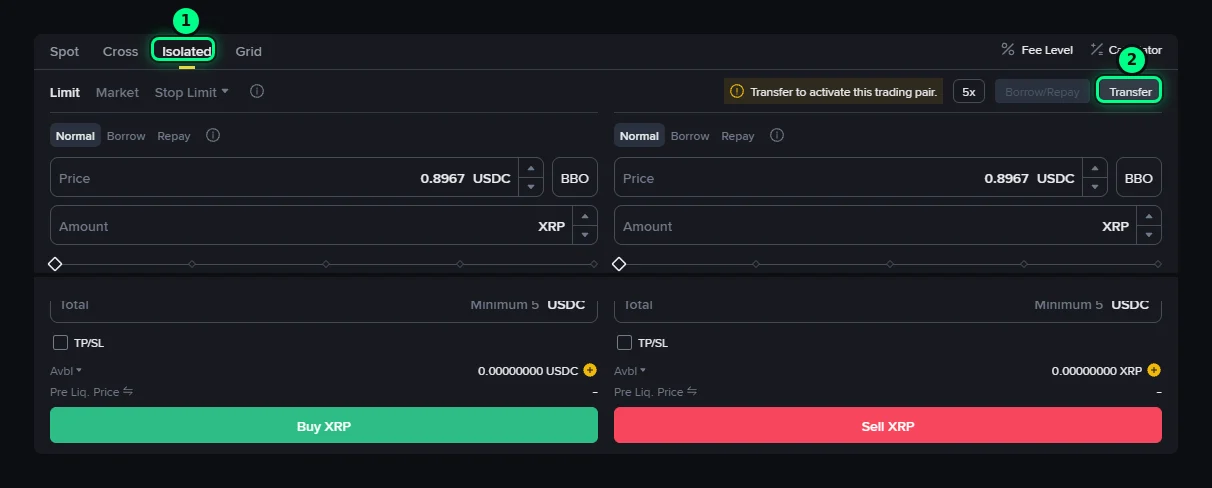
Isolated tab and Transfer button. -
Move your USDC in as collateral
From Spot to Isolated Margin · XRP/USDC ①, coin USDC ②, the amount you want to trade ③, then Confirm ④.
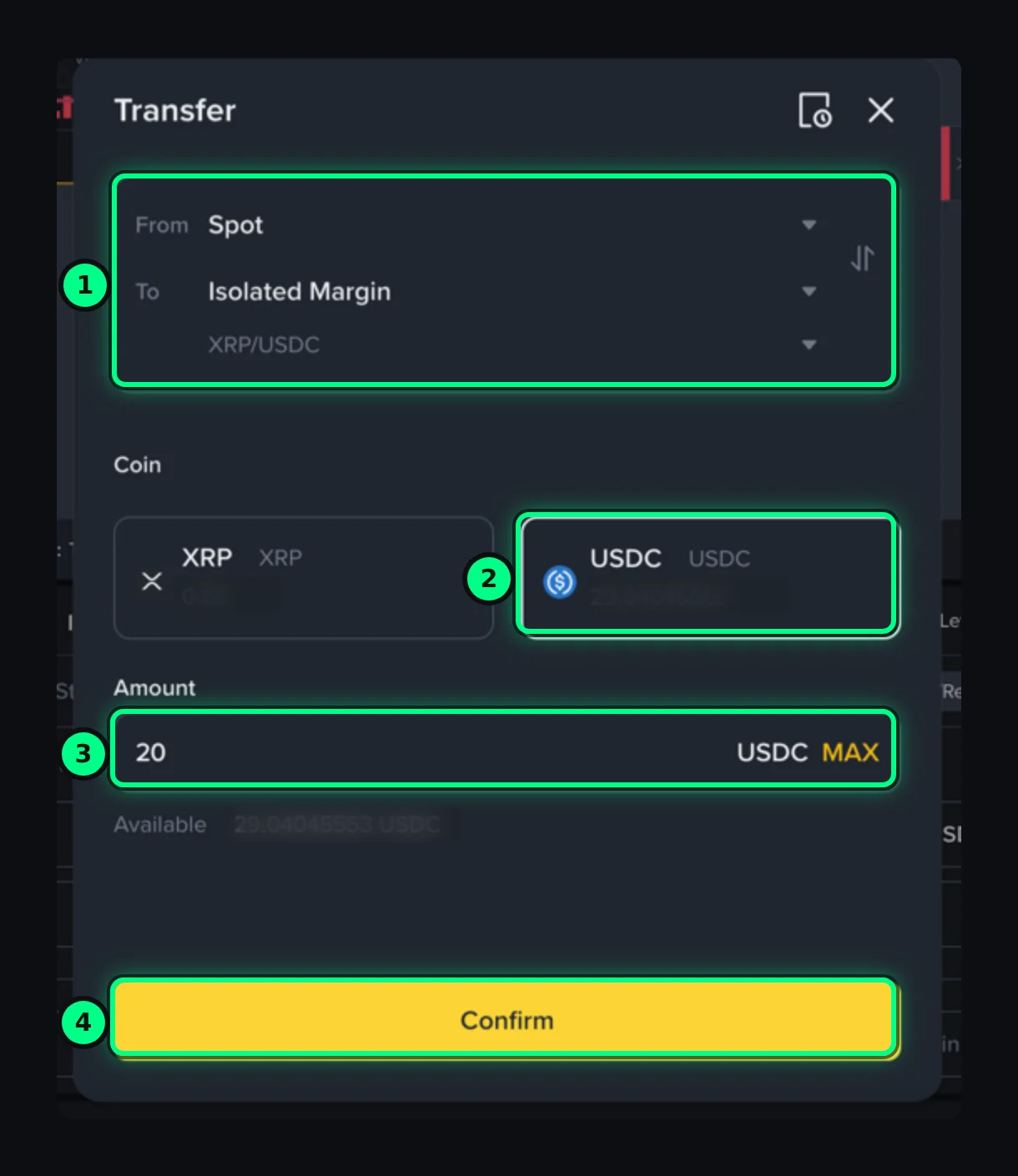
Spot → Isolated Margin, USDC. -
Margin Sell with Borrow at the entry price
On the Sell side (right) keep Limit and choose Borrow ①. Paste the Entry Price ② and set the amount ③, then tap Margin Sell ④. Binance lends you the coin and sells it.
Pricethe signal's Entry PriceAmountyour USDC × 0.997 ÷ entry
20 × 0.997 ÷ 0.9103 = 21.9 XRP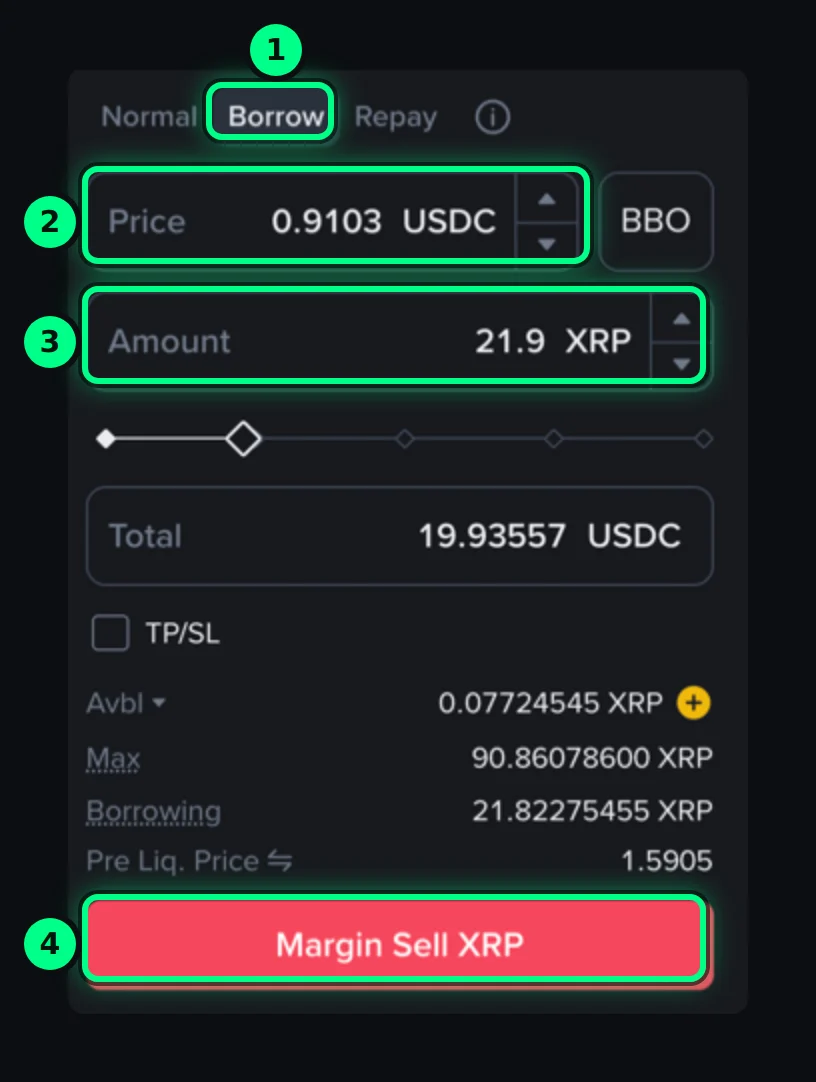
Borrow mode, price and amount. "Borrowing" shows how much you will owe. Wait until the order is Filled (Order History tab). If the price never comes back to the entry, cancel the order and nothing is borrowed.
-
Place an OCO Buy in Repay mode
On the Buy side (left) open Stop Limit ▾ → OCO ① and choose Repay ②. Repay means the buy-back pays your loan back automatically.
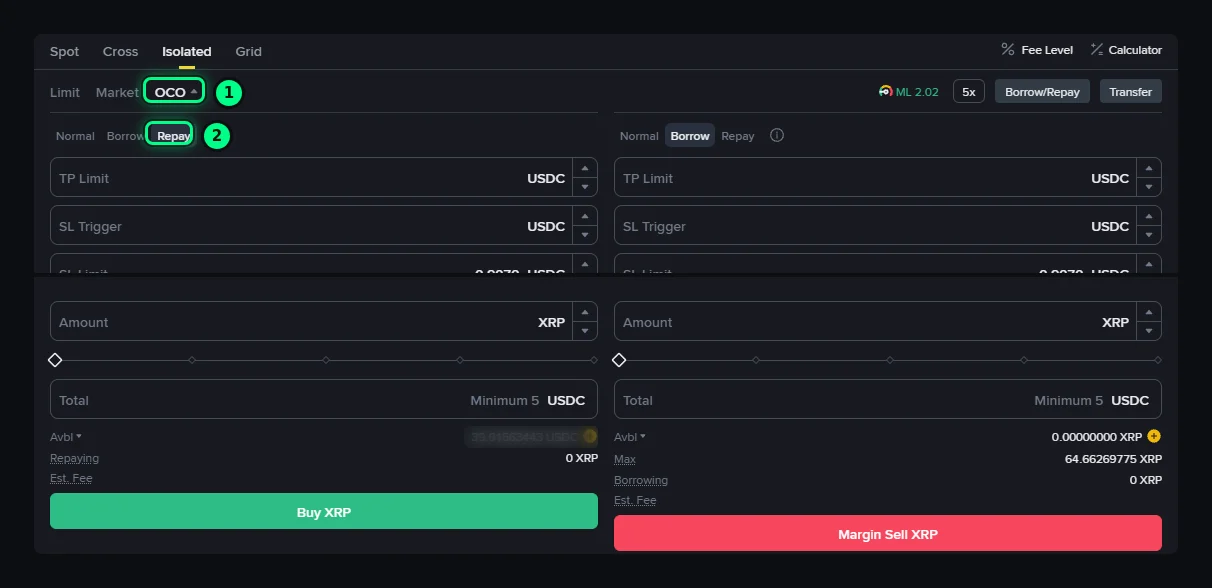
OCO and Repay on the Buy side. ① TP Limit (buy back)the signal's Target Price② SL Triggerthe signal's Stop Loss③ SL Limitslightly above the trigger (0.15–0.3%)④ Amountwhat you sold + 0.2%, rounded up
covers the hourly interest: 21.9 → 22 XRPTap Buy ⑤.
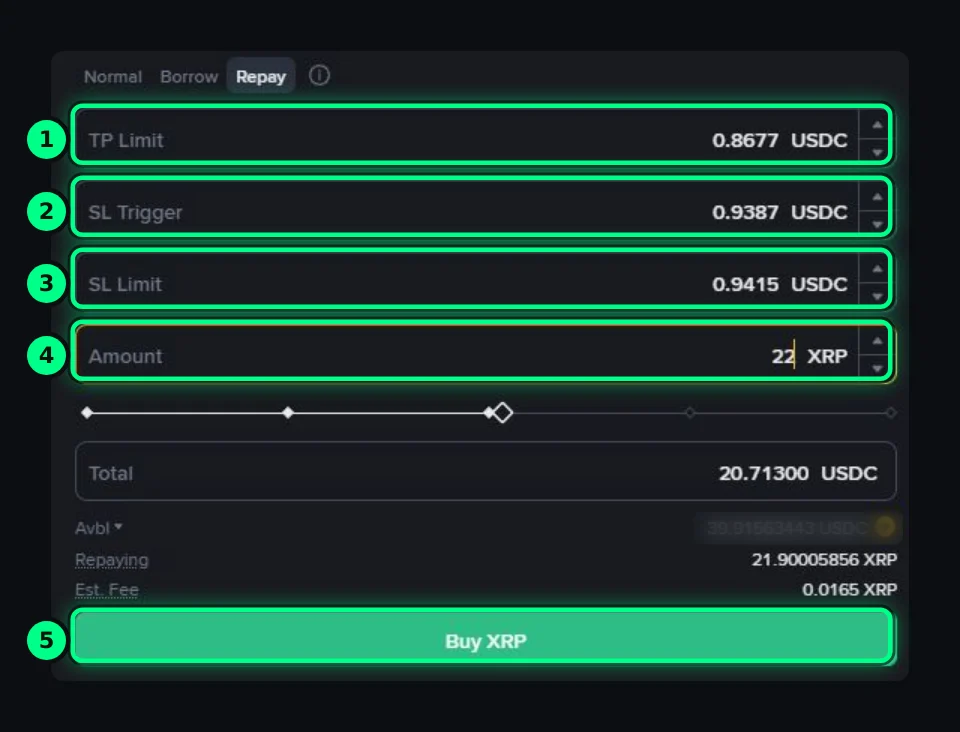
"Repaying" shows the loan the buy-back will cover. -
Check that both orders are waiting
Open Orders (2) ① should list two Buy orders ②: the take profit (Limit Maker) and the stop (Stop Loss Limit). When one fills, Binance cancels the other.

The two halves of the OCO. -
After WIN or LOSS: check the loan is gone
The margin level shows ML 999 ① and Borrowing 0 ②: nothing is owed and Open Orders is empty. If a tiny debt is left from interest, open Borrow/Repay → Repay → Max.
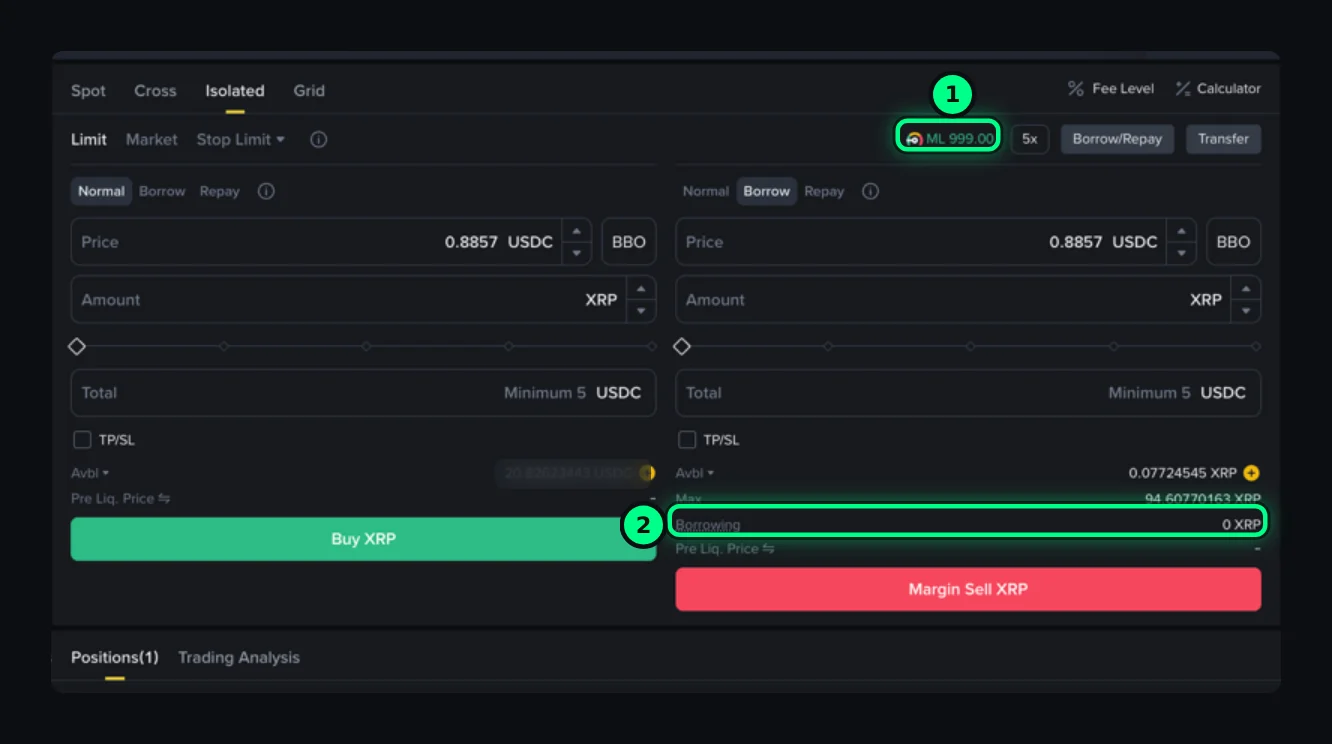
Loan fully repaid. A few cents of XRP may stay behind from the +0.2% buffer. That's normal. Don't use Close Position for it: Binance needs at least 5 USDC per order.
-
Move your USDC back to Spot
Tap Transfer: from Isolated Margin · XRP/USDC to Spot ①, coin USDC ②, MAX ③ and Confirm ④.
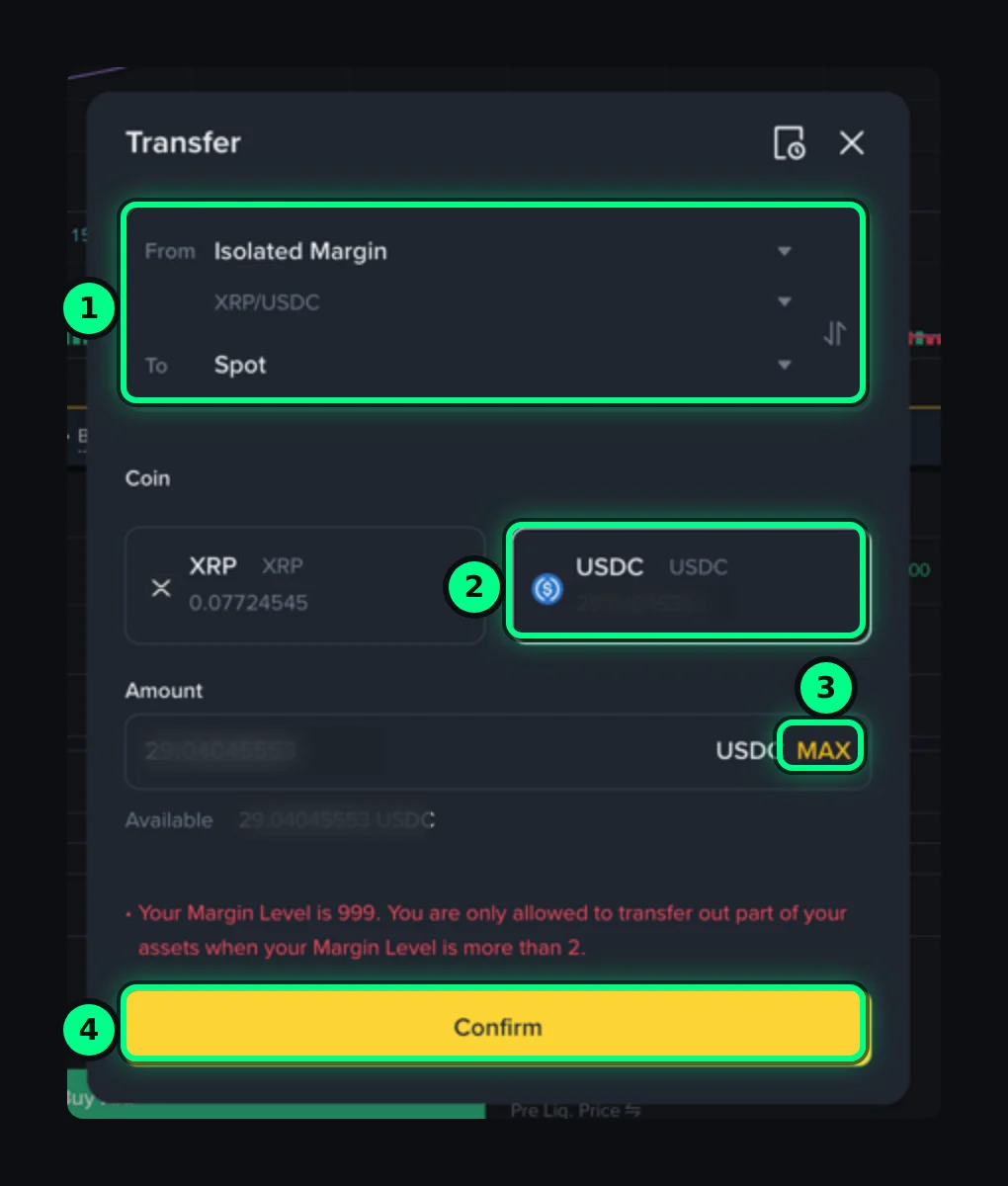
Isolated Margin → Spot, USDC, MAX.
Result of this trade: sold 21.9 XRP at 0.9103, bought back at 0.8677. The 20 USDC became about 20.90 USDC (+4.5%) after fees and interest.
If it ends in a LOSS: the stop half of the OCO buys back higher and still repays the loan. Check Borrowing 0 and move the USDC back the same way.
If the signal expires with neither level reached: cancel the OCO in Open Orders, then on the Buy side choose Repay → Market, buy the same amount and check Borrowing 0.
Interest is charged every hour while you owe the coin (tiny for 1–2 days), and if the price rose far above your entry the position could be liquidated: never borrow more than your collateral, and keep the stop in place.
SELL on Spot (if you already own the coin)
-
Place a Limit Sell at the entry price
Choose Spot → Limit → Sell, paste the Entry Price, set the amount of the coin you want to trade and confirm.
-
Wait until the sell is filled
You now hold USDT (or USDC) instead of the coin. Check the order shows Filled 100%.
-
Place an OCO Buy order to buy back
Open Stop Limit ▾ → OCO, this time on the Buy side. Fill in:
Take profit · limit price (buy back)the signal's Target PriceStop loss · triggerthe signal's Stop LossStop loss · limitslightly above the trigger (about 0.15%)Amount100% of the USDT from the sale -
Let it run
If the price falls to the target, you buy back cheaper and keep the difference. If it rises to the stop, you buy back a little higher and take the small planned loss.
Example. You sell 1,000 ADA at $0.1503 and get 150.30 USDT. The price drops to the target $0.14439 and your OCO buys back about 1,040 ADA: roughly 4% more coins, before fees. If instead it rises to the stop $0.15424, you buy back about 974 ADA.
5. What happens next
- WIN: the price reached the target. Your take-profit order filled and the stop was cancelled.
- LOSS: the price reached the stop. Your stop order filled and the take profit was cancelled. Losses are part of trading: the stop keeps them small.
- EXPIRED: neither level was reached within 48 hours. Your position may still be open on Binance, so decide whether to keep it or close it manually.
- Signal closed before your entry filled? Cancel the waiting limit order on Binance so it doesn't fill later without a plan.
Premium members get a helper for all of this: tap I placed order on a signal and we show the exact prices rounded for Binance, then message you on Telegram when your entry is reached and when the trade ends in WIN or LOSS. Enter your stake (for example $15) and you also see the profit or loss in dollars, with Binance fees included, for each trade and in total.
6. Safety rules
- Always use the stop loss. A trade without a stop can turn a small loss into a big one.
- Keep each trade small. A common rule is to risk no more than 1–2% of your account on a single trade, and never money you can't afford to lose.
- Not every signal wins. Many signals end in a loss: results come from winners being larger than losers over many trades, and some periods are negative. See the real numbers on the Performance page.
- Count the fees. Binance Spot charges about 0.1% when you buy and 0.1% when you sell.
- Don't chase. If the price is already far past the entry, the risk and reward in the signal no longer apply.
- Start small. Follow a few signals with a small amount until every step feels familiar.
BlastSignals provides informational and educational content only, not financial advice. Cryptocurrency trading involves substantial risk of loss and past performance does not guarantee future results. See our Terms.